

You upgraded your graphics card, but games still stutter. Or you bought a powerful CPU, and yet everything feels slow. What’s going on?
The answer is often one word: bottleneck.
In this guide, we’ll explain what a bottleneck is, how the CPU and GPU work together, and how to find out — in under a minute — whether your PC is being held back.
What is a bottleneck?
Imagine a chain: it’s only as strong as its weakest link. Your PC works the same way. A bottleneck happens when one component can’t keep up with the rest of the system, so the faster parts have to wait.
If your CPU is weak, it can’t feed enough data to your GPU — no matter how powerful the graphics card is. If your GPU is weak, it simply can’t render frames fast enough, no matter how fast your CPU is.
CPU vs GPU: what does each one do?
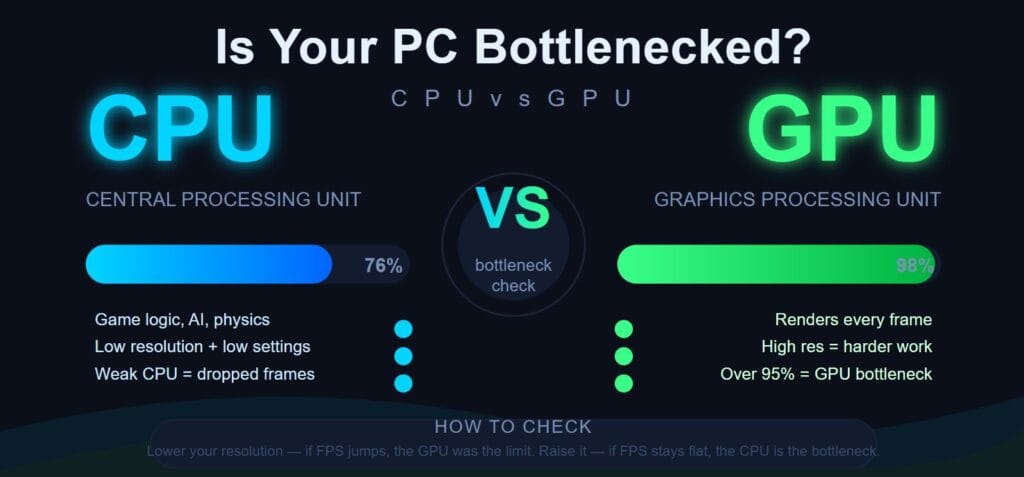
CPU (Central Processing Unit) — the “brain” of your PC. It handles logic, calculations, game AI, physics, background tasks, and tells every other component what to do.
GPU (Graphics Processing Unit) — the “artist.” It renders images, effects, and video frames. In games, it draws the picture that ends up on your screen.
Different tasks lean on different parts:
- Gaming → mostly the GPU, but the CPU handles AI and physics.
- Video editing and rendering → both, depending on the software.
- Office work and browsing → mostly the CPU.
CPU bottleneck — what it looks like
A CPU bottleneck means your processor is the weak link. Signs:
- Your CPU usage sits near 100% while the GPU idles at 40–60%.
- Frame rates dip in heavy scenes (lots of enemies, explosions, physics).
- It often happens at low resolutions and high frame rates, because the GPU finishes its work fast and then waits for the CPU.
GPU bottleneck — what it looks like
A GPU bottleneck means your graphics card is the weak link. Signs:
- GPU usage is near 100% while the CPU relaxes.
- Frames per second are low at high graphics settings.
- This is actually normal in gaming — especially at high resolutions like 1440p or 4K.
Fun fact: for a pure gaming PC, having the GPU at 100% is usually exactly what you want. It means the graphics card is working as hard as it can.
How to check if your PC is bottlenecked
You can check manually: open Task Manager (or MSI Afterburner), run a demanding game, and watch the usage of the CPU and GPU. The one at 100% while the other idles is your bottleneck.
But that’s fiddly, and one game isn’t representative of everything.
The easier way is to let a tool do the math.
Use the free PC Bottleneck Calculator
We built the PC Bottleneck Calculator — a free tool that compares your CPU, GPU, and RAM, and tells you how balanced your system is.
Just enter your components, and the calculator shows you which part is holding your PC back, and how big the gap really is.
Check your PC now → https://pythongreatagain.com/pc-bottleneck-calculator/
How to fix a bottleneck
- GPU bottleneck (gaming): lower graphics settings or resolution, enable DLSS/FSR if available. A GPU upgrade helps, but often a settings tweak is enough.
- CPU bottleneck: close background apps, update drivers, check your cooling (thermal throttling feels like a bottleneck!). Overclocking or a CPU upgrade is the bigger fix.
- RAM: make sure you have enough and that it runs in dual channel.
FAQ
Is a GPU bottleneck bad? Usually not — in gaming it’s the expected, healthy state. It only becomes a problem when it’s so severe that performance feels poor.
CPU or GPU — which is more important for gaming? For high resolutions (1440p/4K), the GPU matters most. For high frame rates at low resolutions, the CPU becomes critical.
What percentage should I aim for? A perfectly balanced system lets both components reach high usage. A big gap between CPU and GPU usage usually means a bottleneck.
Final thoughts
A bottleneck is just a mismatch — and knowing it exists is the first step to fixing it. Use the PC Bottleneck Calculator to see how balanced your PC is, and you’ll know exactly what to upgrade next.